

SchoolEasy User Guide
Complete step-by-step tutorial to master SchoolEasy - Your comprehensive school management system
1.
Getting Started
System Requirements
- Windows 10 or later
- 4GB RAM minimum
- 2GB free disk space
- Internet connection for updates
Installation Steps
- Download SchoolEasy installer
- Run as Administrator
- Follow setup wizard
- Create admin account
- Configure school settings
2.
Login & Initial Setup
First Time Login
Launch SchoolEasy
Double-click the SchoolEasy icon on your desktop or start menu
Enter Credentials
Use the admin account created during installation
Complete Setup Wizard
Configure school name, academic year, and basic settings
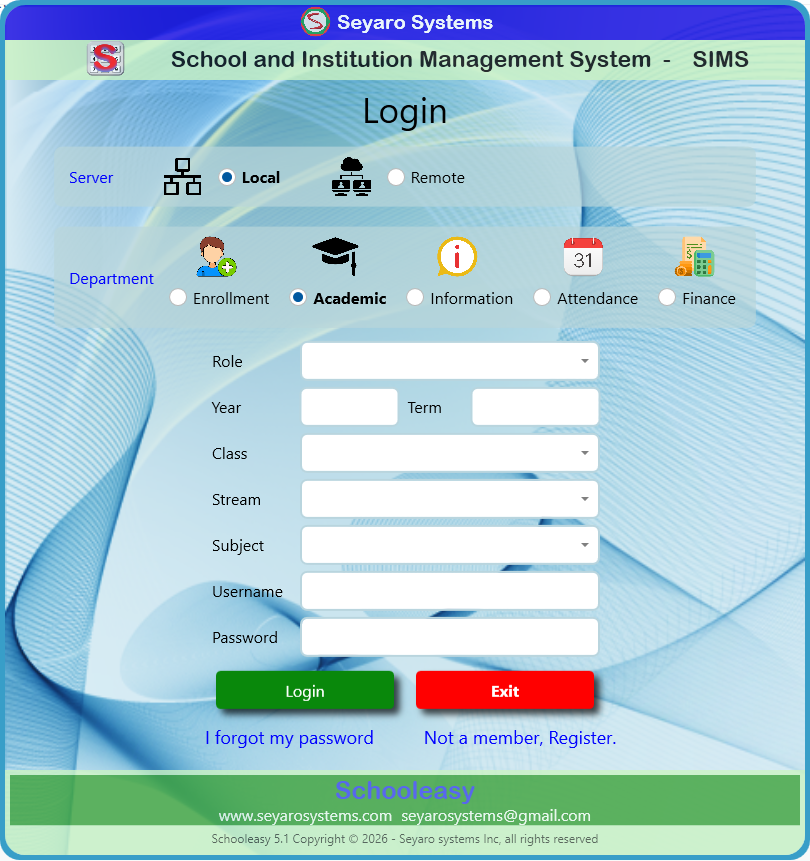
SchoolEasy Login Interface
3.
Managing Student Records
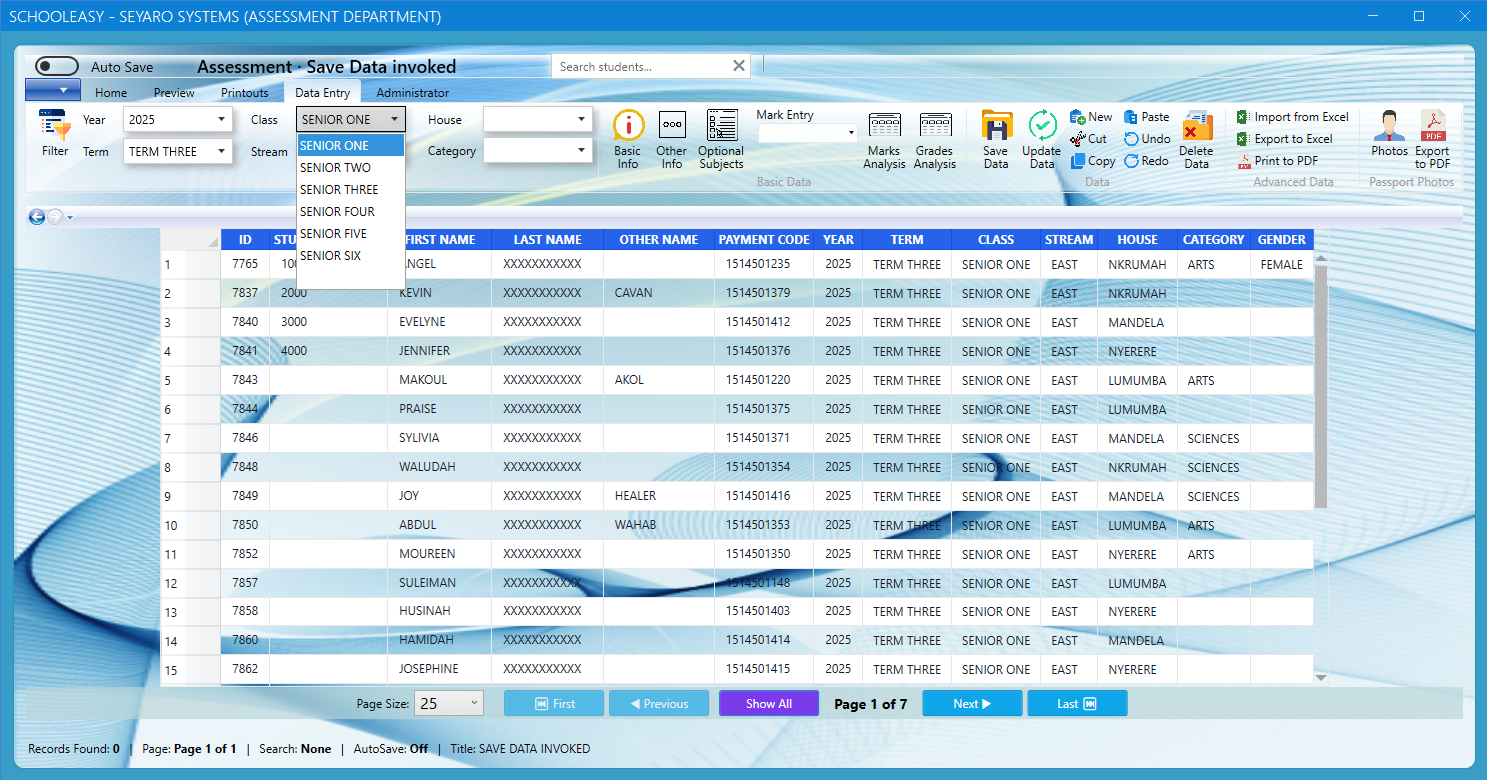
Student Information Management
Adding New Students
4.
Grade Entry & Management
Entering Student Grades
Quick Entry Mode
- Select class and subject
- Choose assessment type
- Enter scores directly
- Save automatically
Bulk Entry Mode
- Use Excel template
- Import multiple records
- Review and validate
- Confirm import
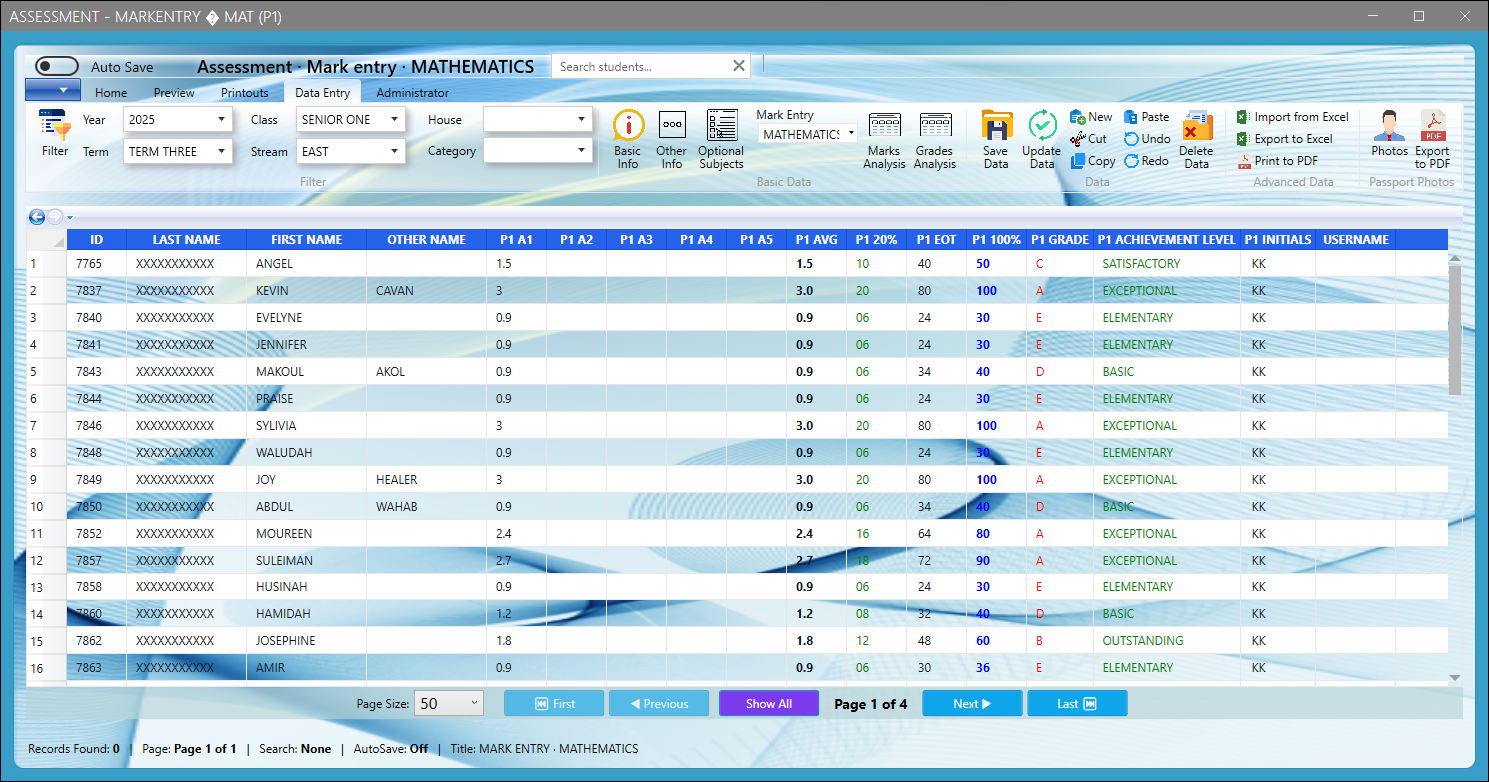
Grade Entry Interface
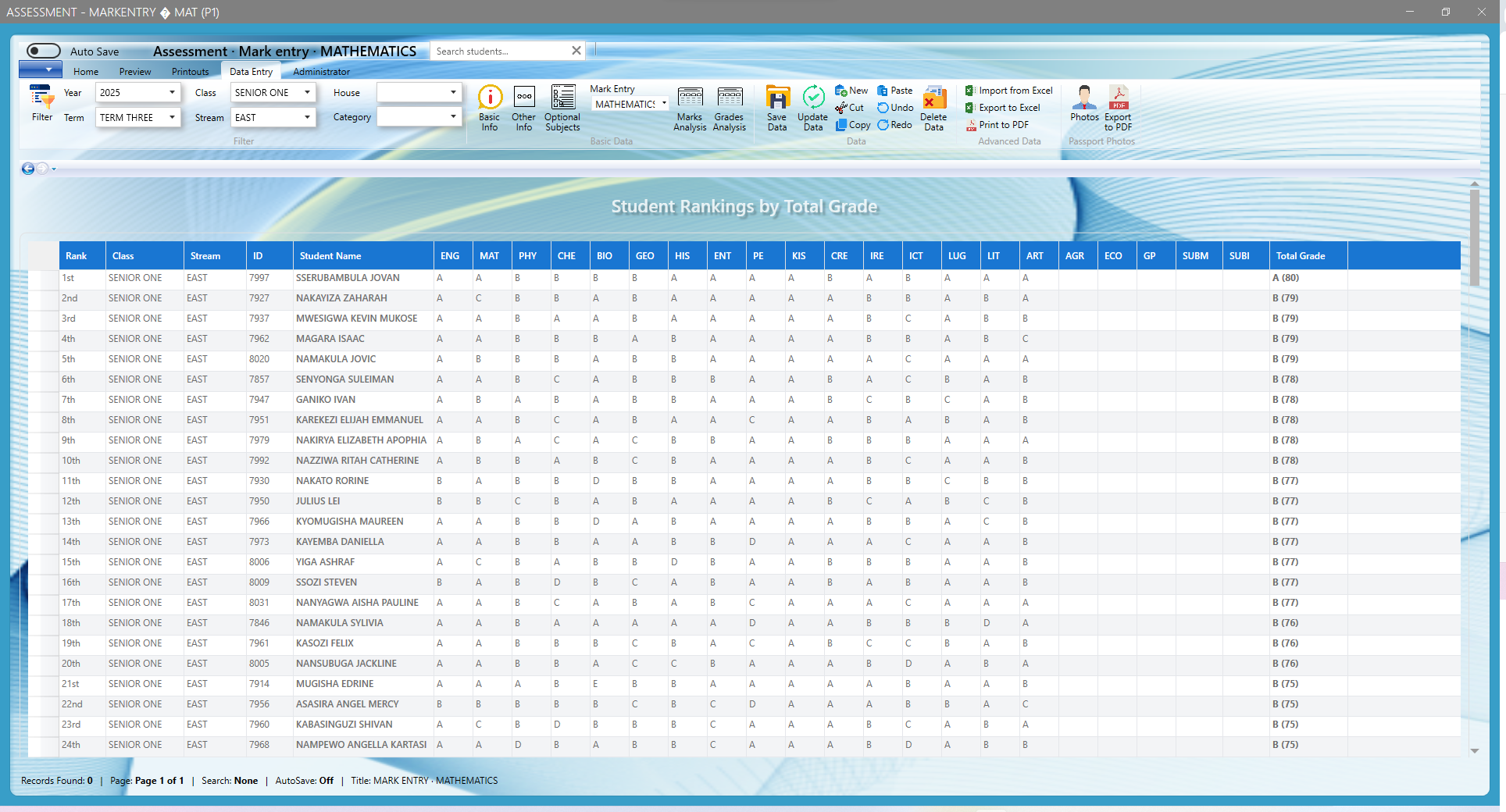
Grade Rankings Display
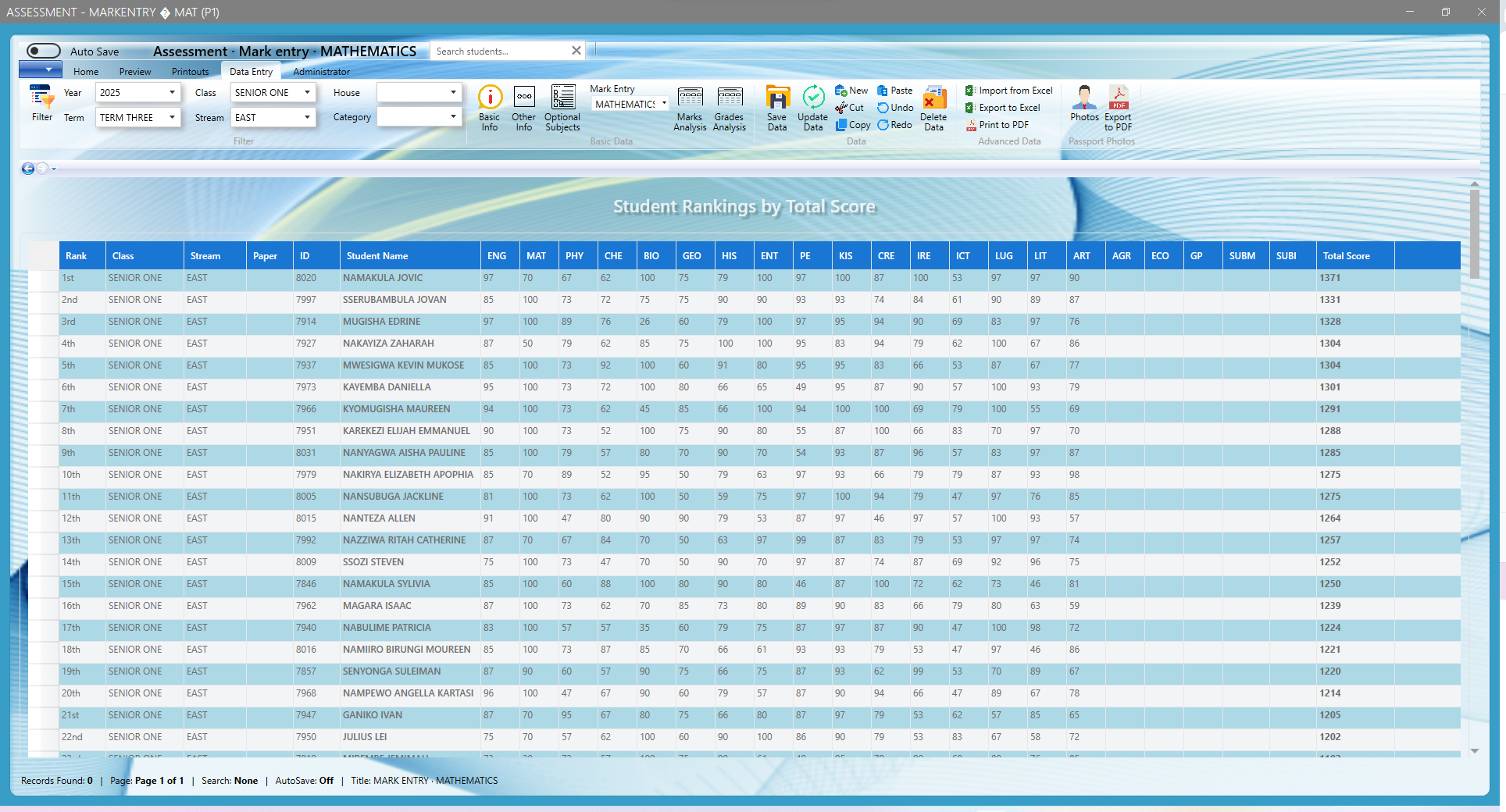
Score Rankings Overview
5.
Reports & Analytics
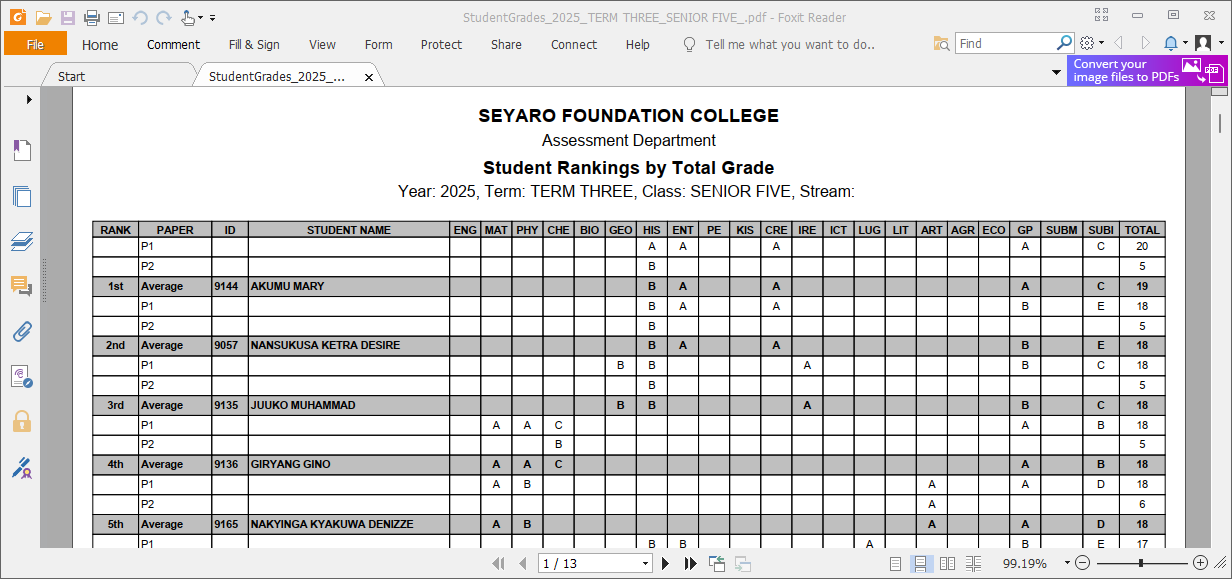
Professional PDF Reports
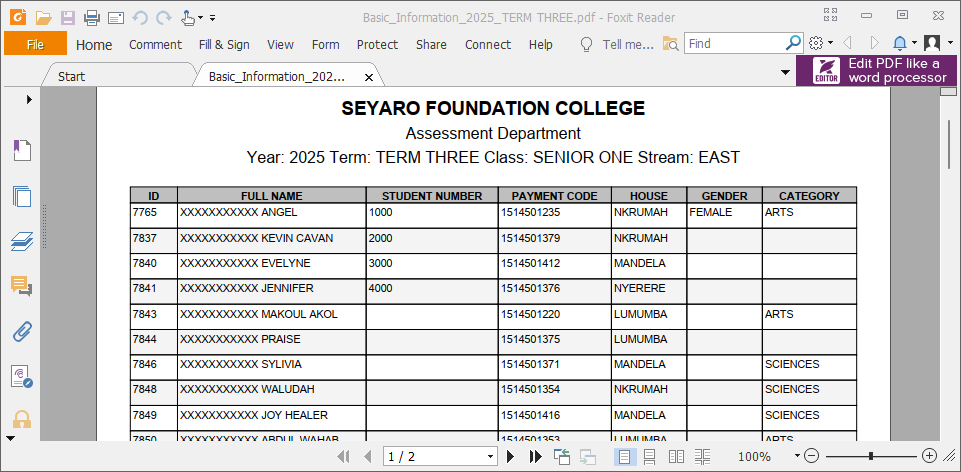
Detailed Analytics Reports
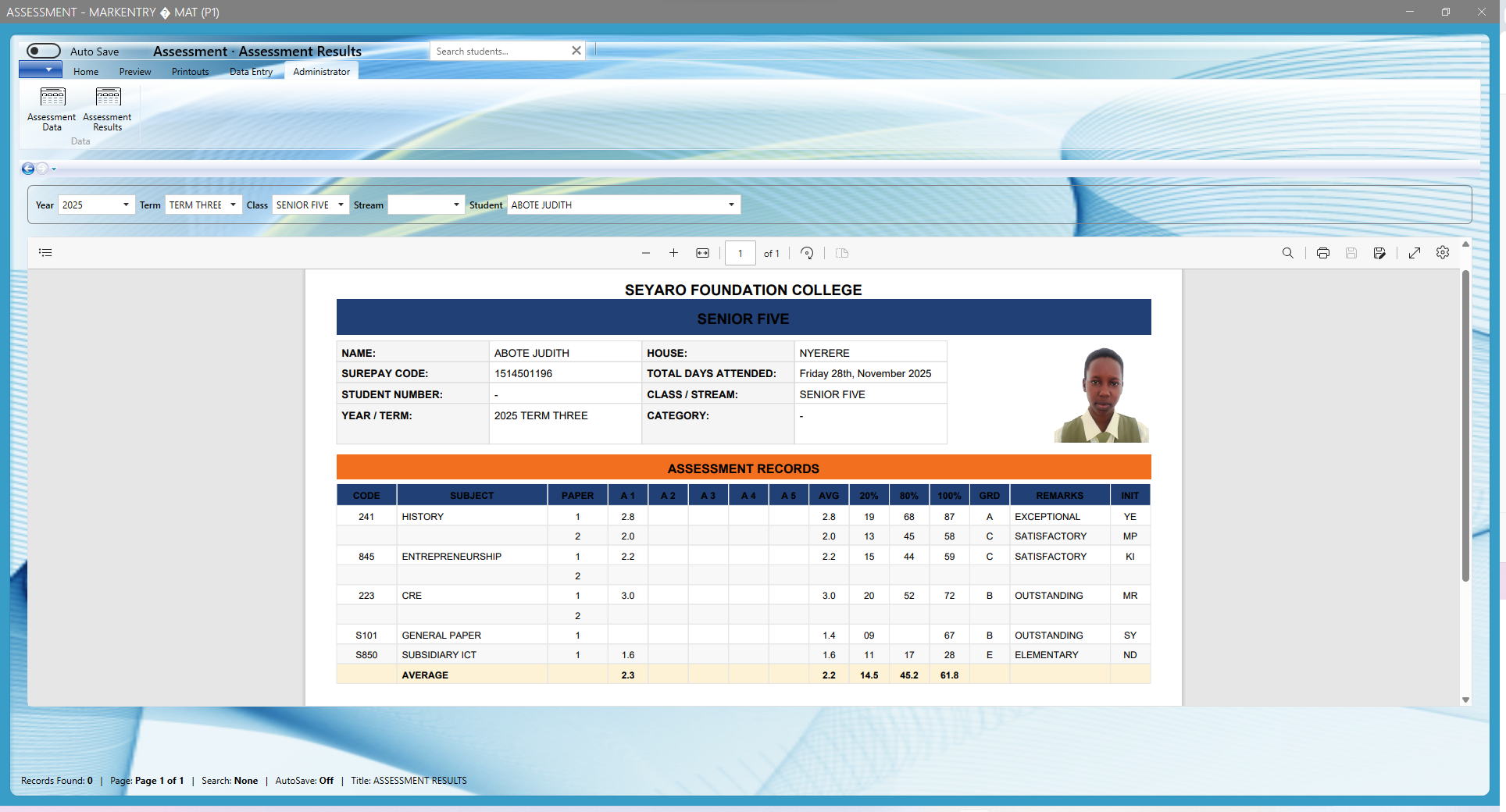
Quick Mini Reports
Generating Reports
Student Report Cards
Class Performance
Ranking Lists
Attendance Summary
Report Customization
- Choose report template
- Select date range
- Filter by class/subject
- Add school logo
- Export to PDF/Print
6.
Data Import/Export
Importing Data
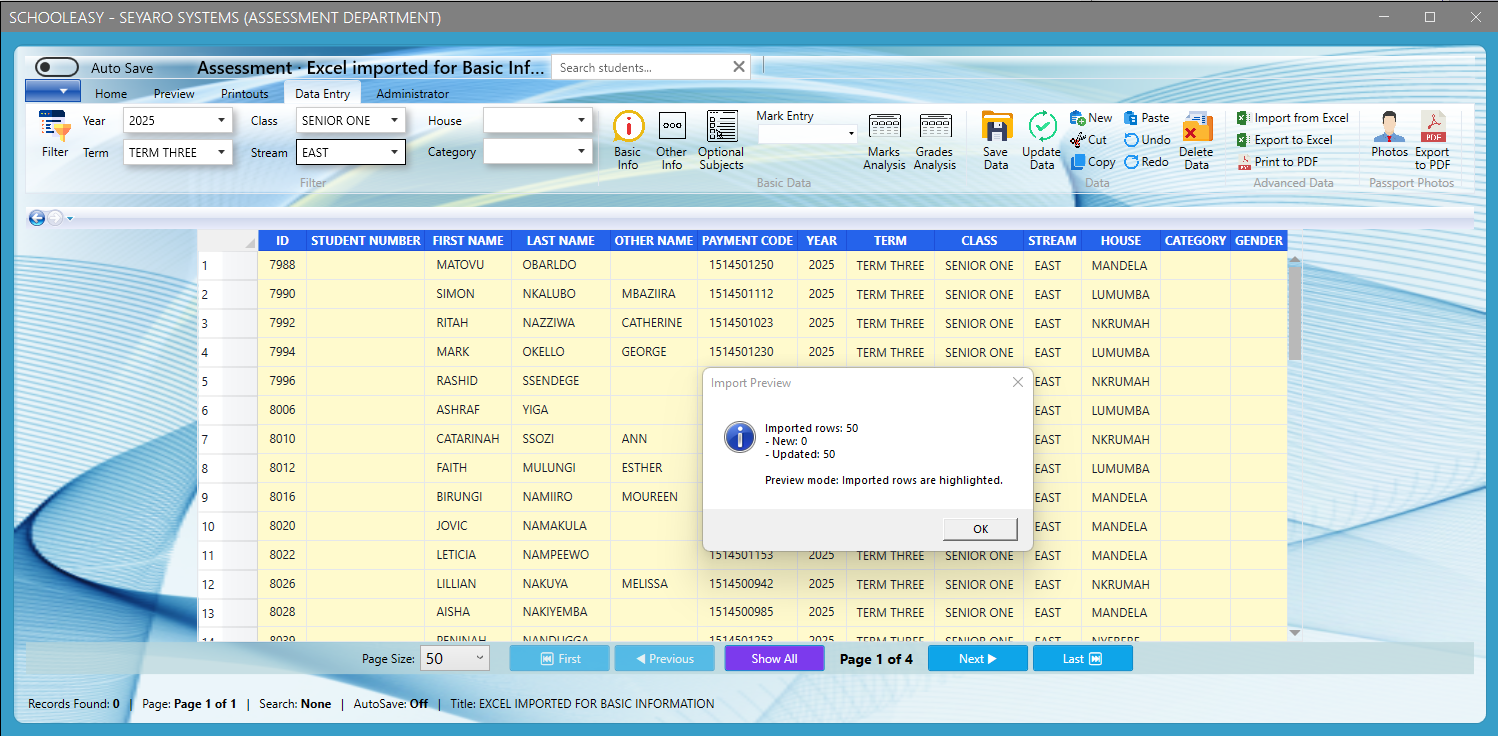
Excel Integration
Import student lists, grades, and more
- Download Excel template
- Fill in your data
- Validate format
- Upload and import
Exporting Data
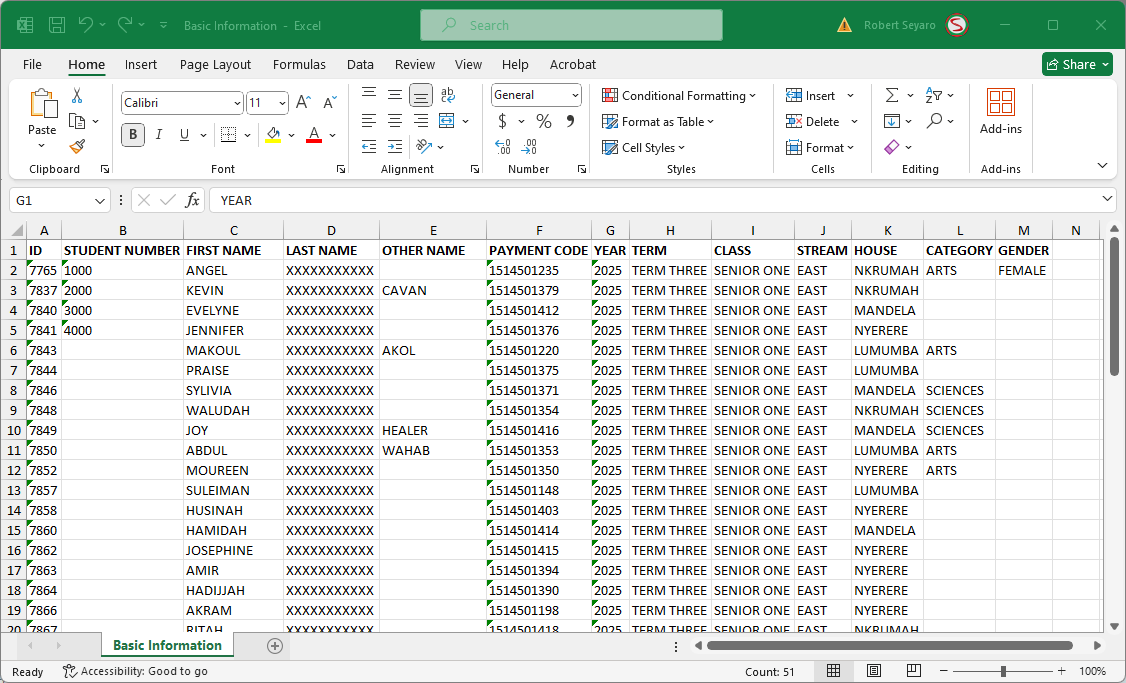
Multiple Formats
Export to Excel, PDF, or CSV
- Select data to export
- Choose format
- Apply filters if needed
- Download file
7.
User Management
Role-Based Access Control
Administrator
Full system access, user management, system settings
Teacher
Grade entry, class reports, student records access
Viewer
Read-only access to reports and analytics
Secure User Authentication
8.
Troubleshooting & Support
Common Issues
Getting Help
Phone Support
+256 772 007 006
Email Support
seyarosystems@gmail.com
Online Resources
Video tutorials and documentation
Ready to Get Started with SchoolEasy?
Follow this guide to efficiently manage your school's operations