Android
An APK is the Android installation package. Find the current SchoolMeridian Android APK in the website’s software releases or obtain the approved release from your school administrator.
Find Android releasesSCHOOLMERIDIAN / MOBILE GUIDE
A practical guide to SchoolMeridian on Android, iPhone and iPad. Connect to your school, set up staff access, find your timetable and work with assessments through the same familiar mobile interface.
SchoolMeridian provides Android and iOS versions with a shared interface and the same core workflows. Use this guide for server setup, staff access, dashboards, timetables and assessments on either platform. The screenshots were captured on Android and illustrate the shared app screens; device installation and system permission prompts differ.
An APK is the Android installation package. Find the current SchoolMeridian Android APK in the website’s software releases or obtain the approved release from your school administrator.
Find Android releasesUse the SchoolMeridian iOS version on iPhone or iPad to access the same school connection, staff workspace, timetable and assessment workflows. Obtain the school-approved iOS installation link and setup instructions from Seyaro Systems or your school administrator.
After installing the iOS app, follow the shared instructions below: connect to your school server, choose your portal and sign in with your approved account. Available tools are determined by your school configuration and assigned role on both platforms.
Request iOS installationHave your school server address, the correct network connection and your staff details ready. Your administrator can confirm device requirements, the approved version and whether remote access is enabled.
A local connection uses the school’s network and a running school server; it can operate without an internet connection when that deployment supports it. Access away from school requires a reachable remote service and the school’s connection details. Do not assume that an off-site phone can reach a local server address or that changes can be saved while disconnected.
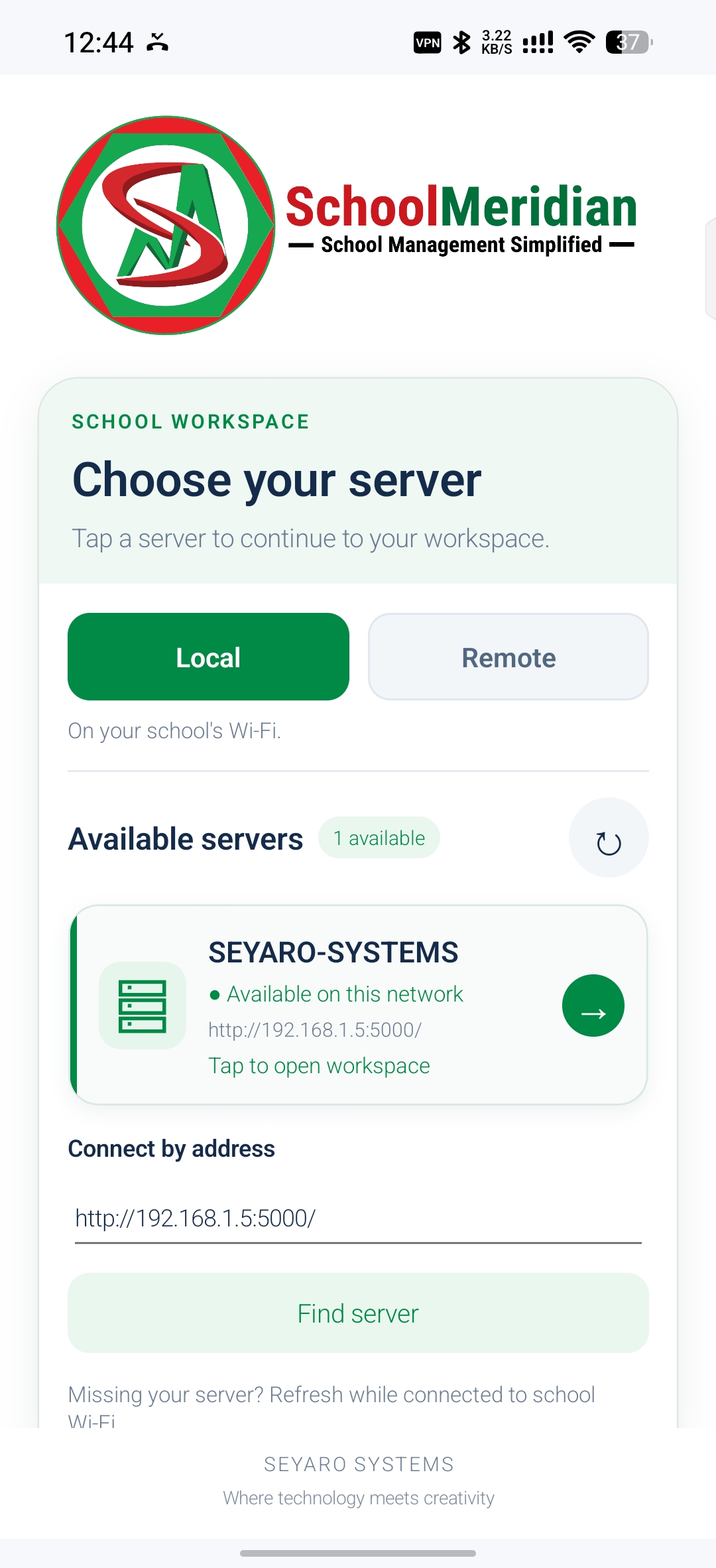
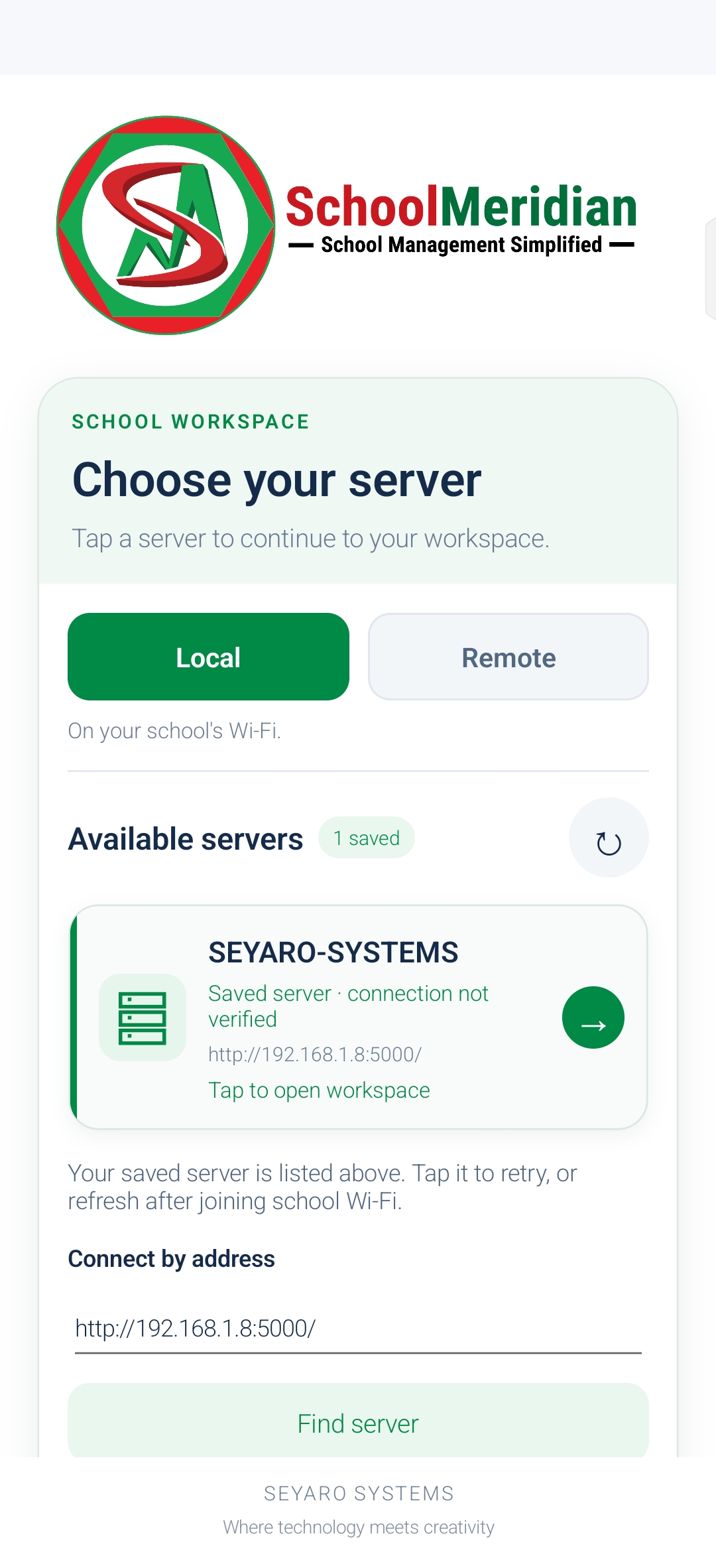
On Android and iOS, the app needs the correct school workspace before you sign in. Your school administrator supplies the server address and tells you whether to use the school network or a remote connection.
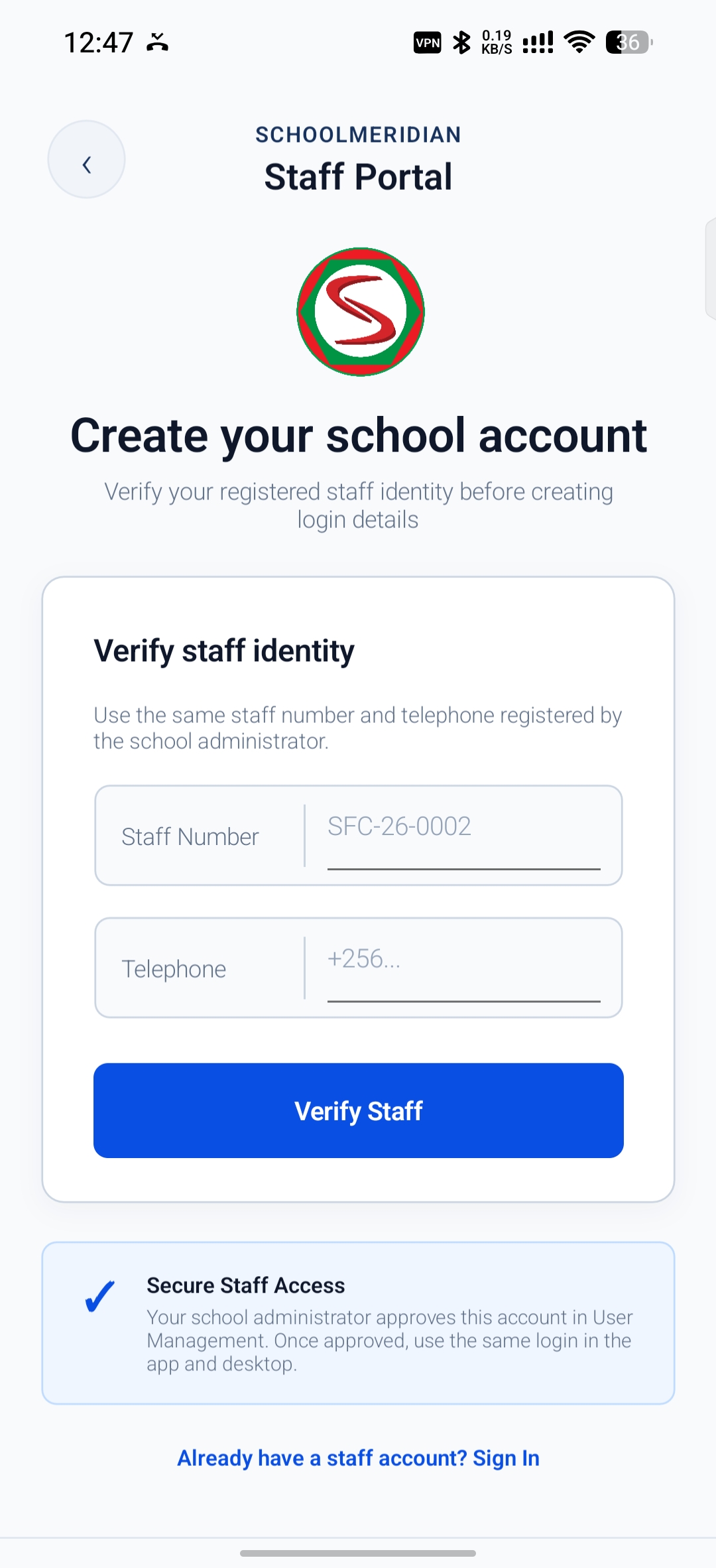
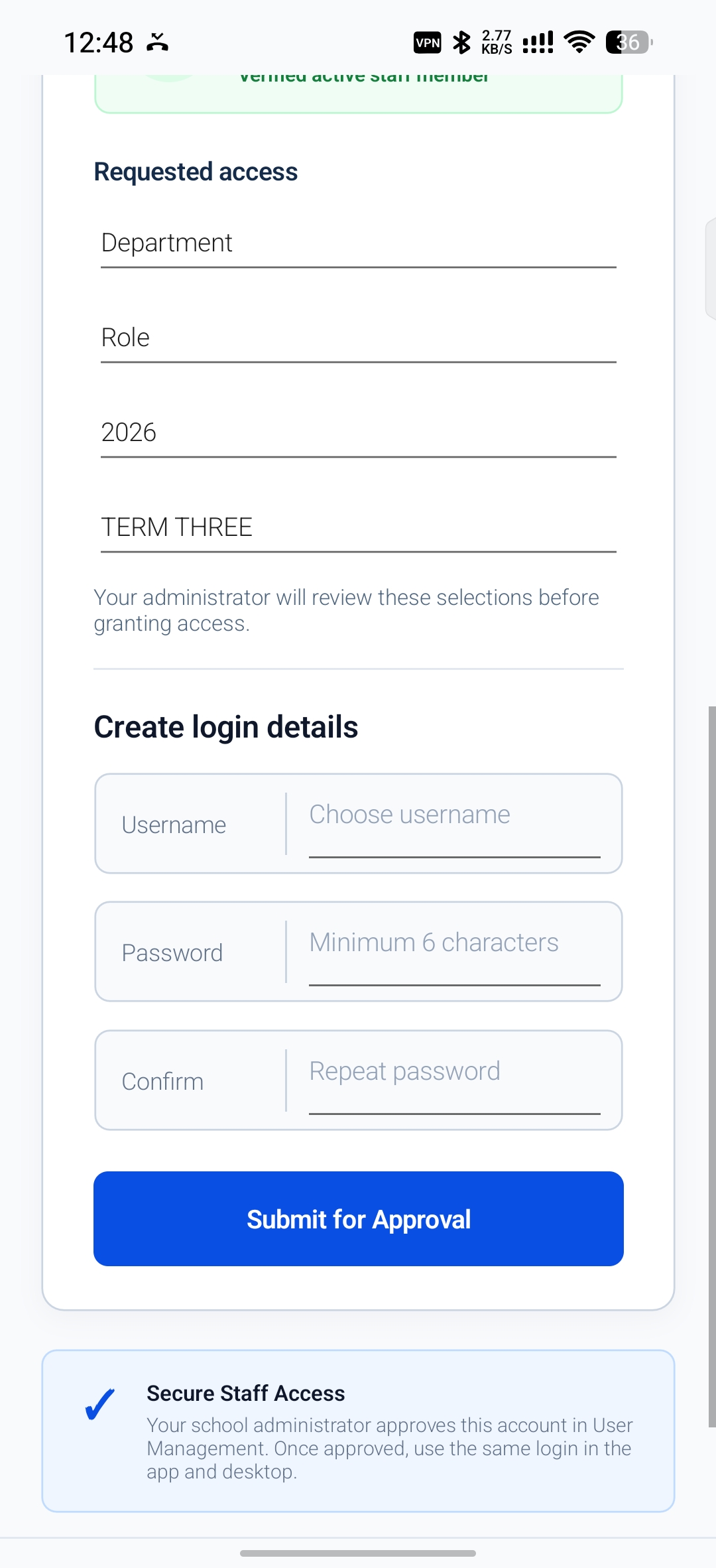
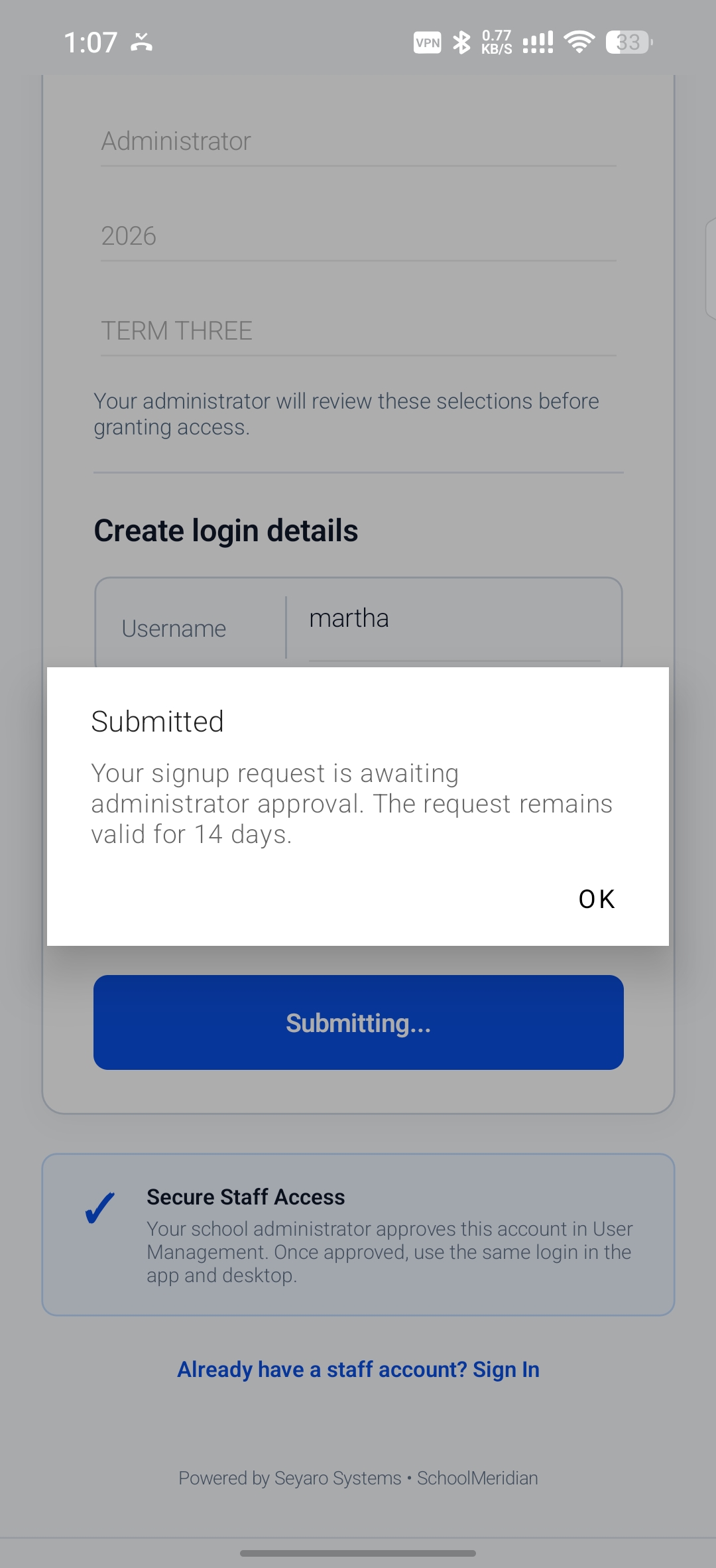
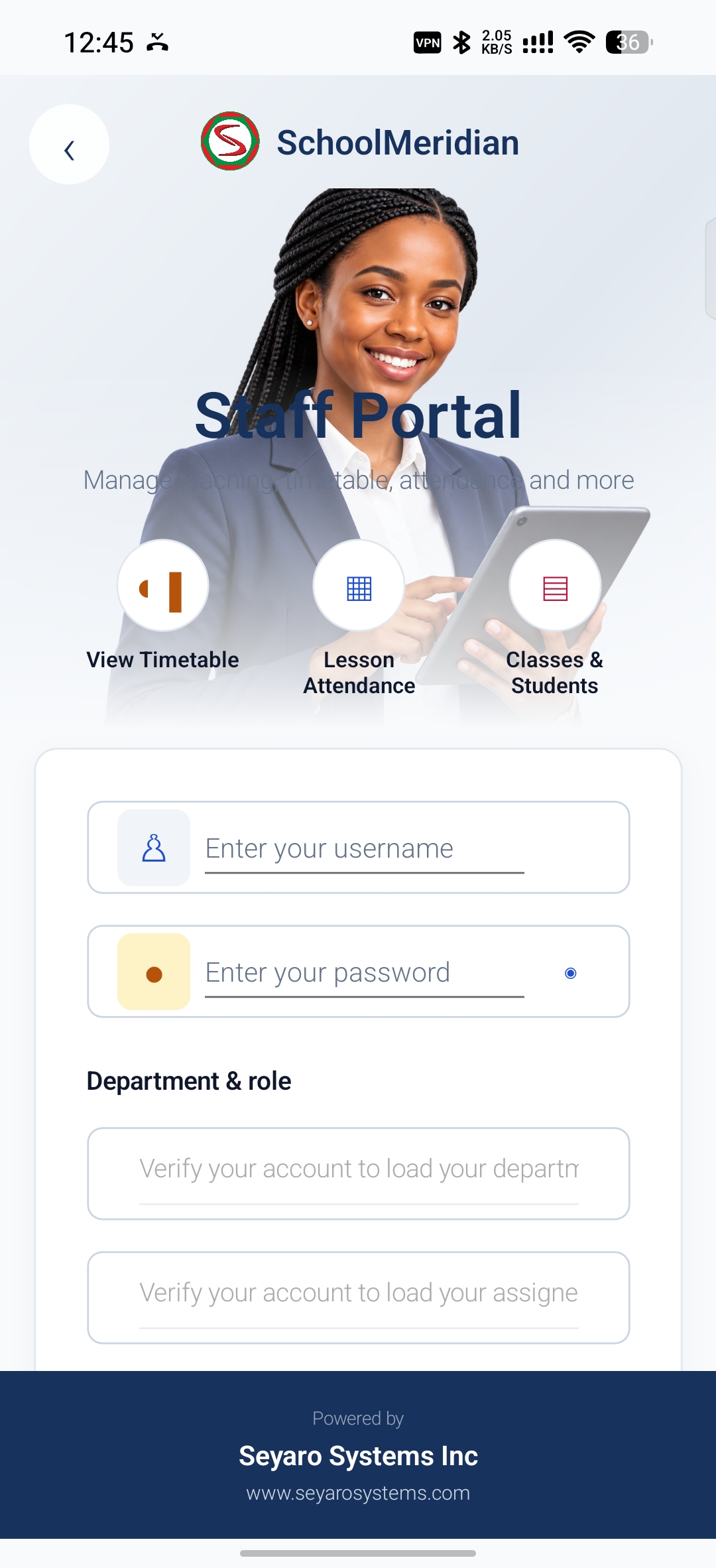
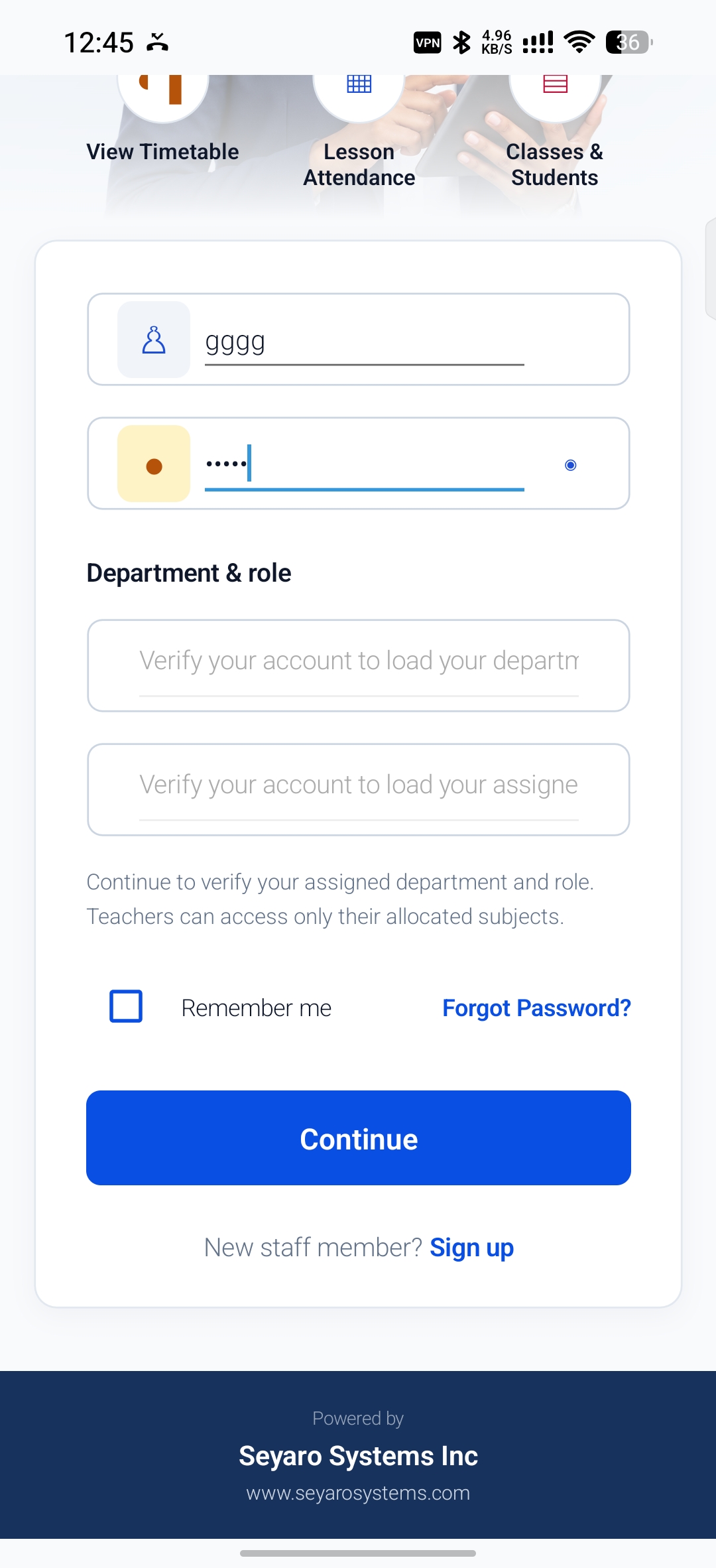
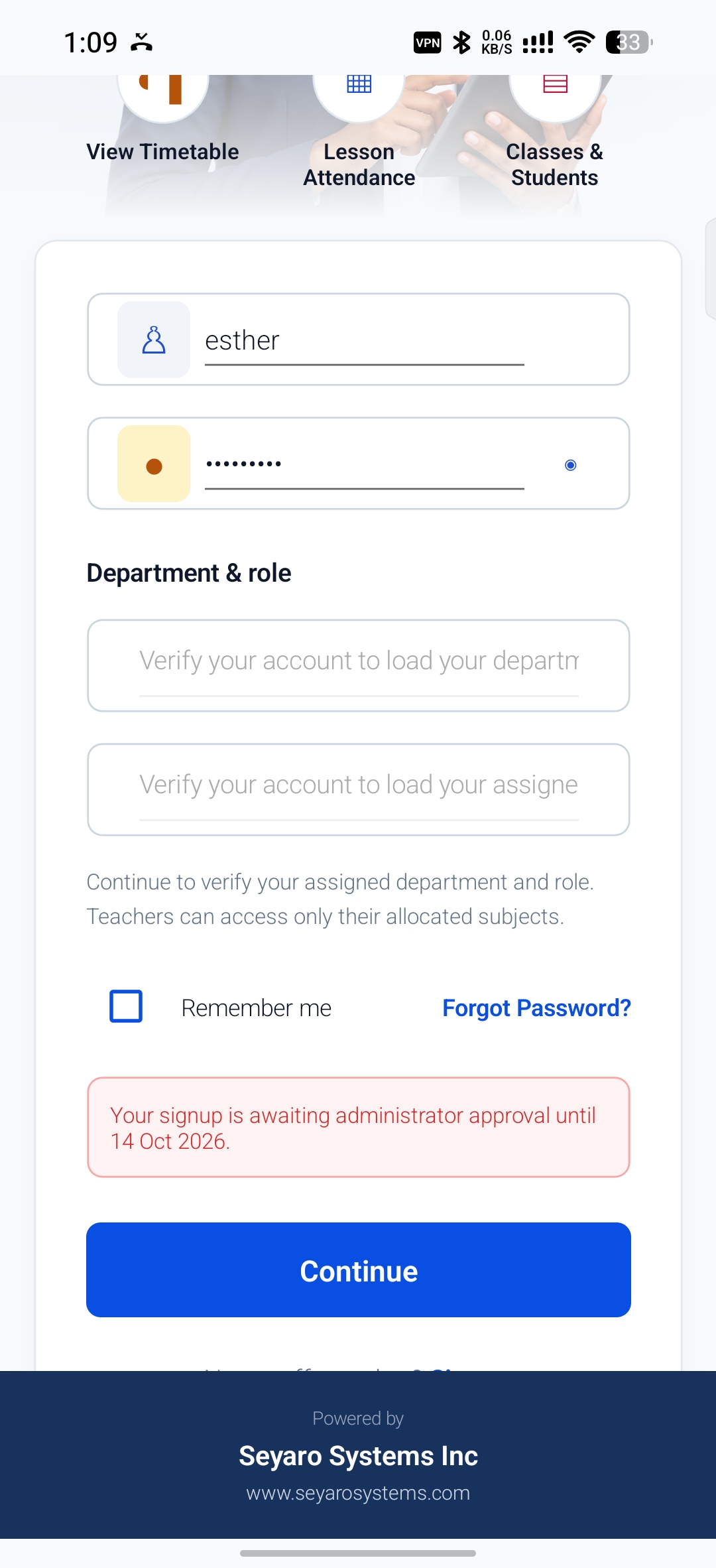
Staff access starts with an existing school staff record. Account creation requests access; the school administrator reviews the department, role and account before access is granted.
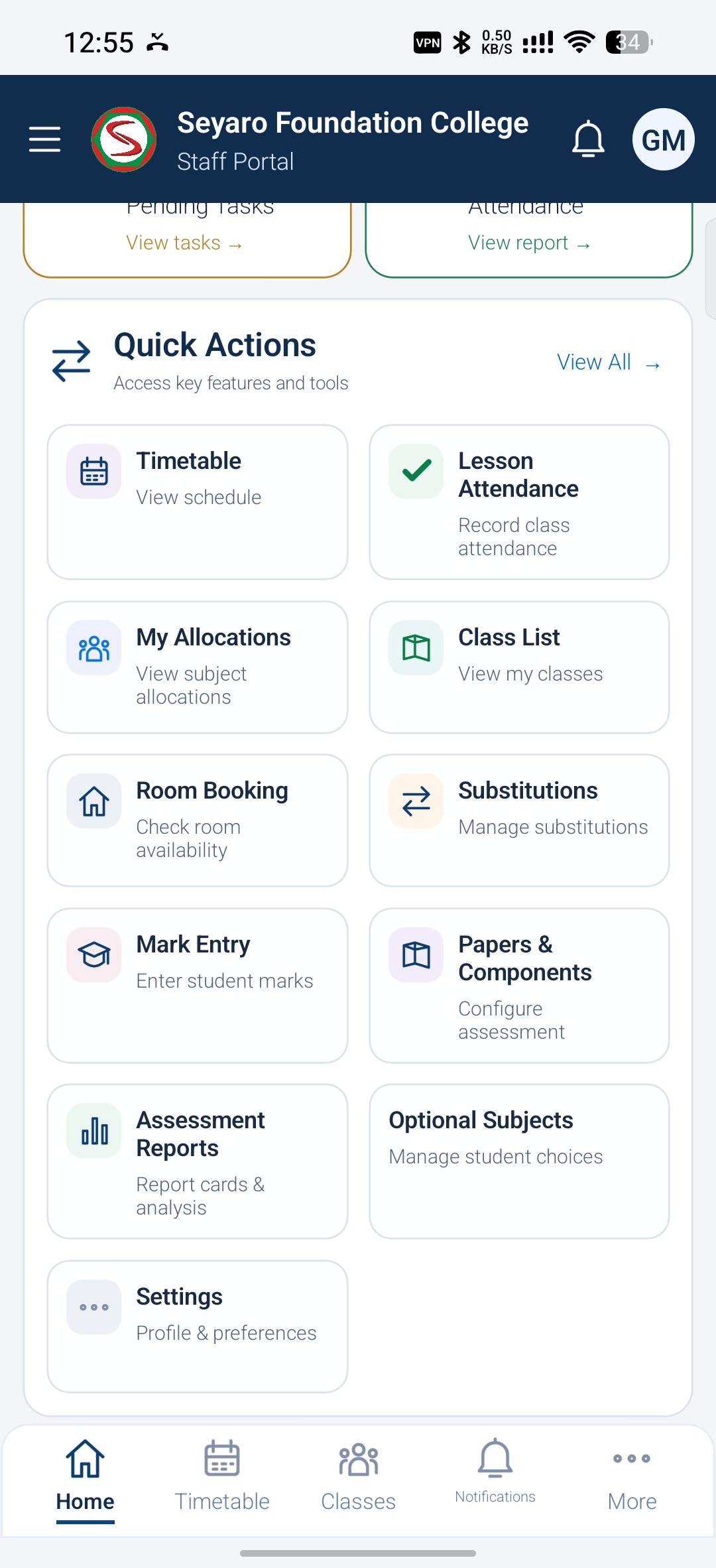
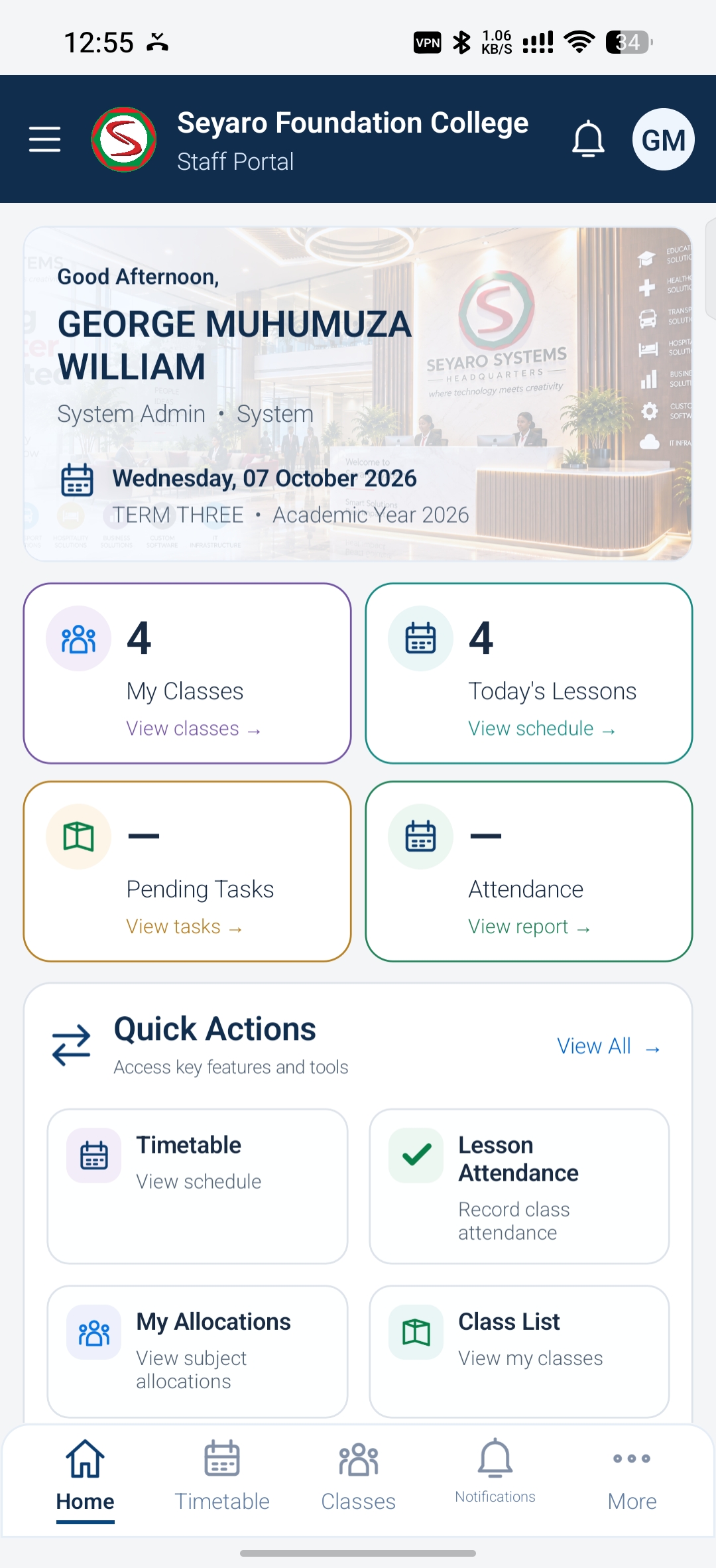
The staff dashboard brings school information, lesson planning shortcuts and teaching tasks into one mobile workspace. The tools you can use depend on your approved role and the school configuration.
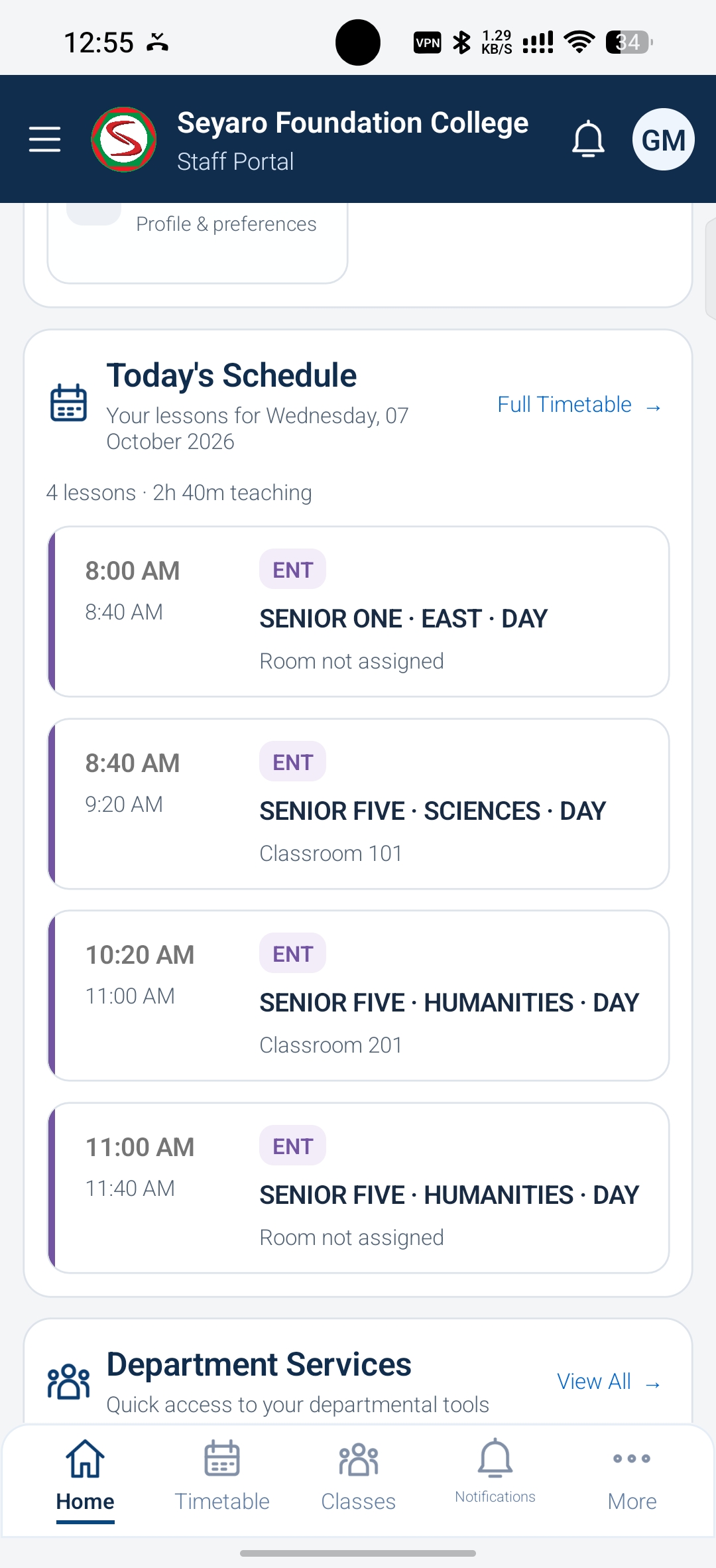
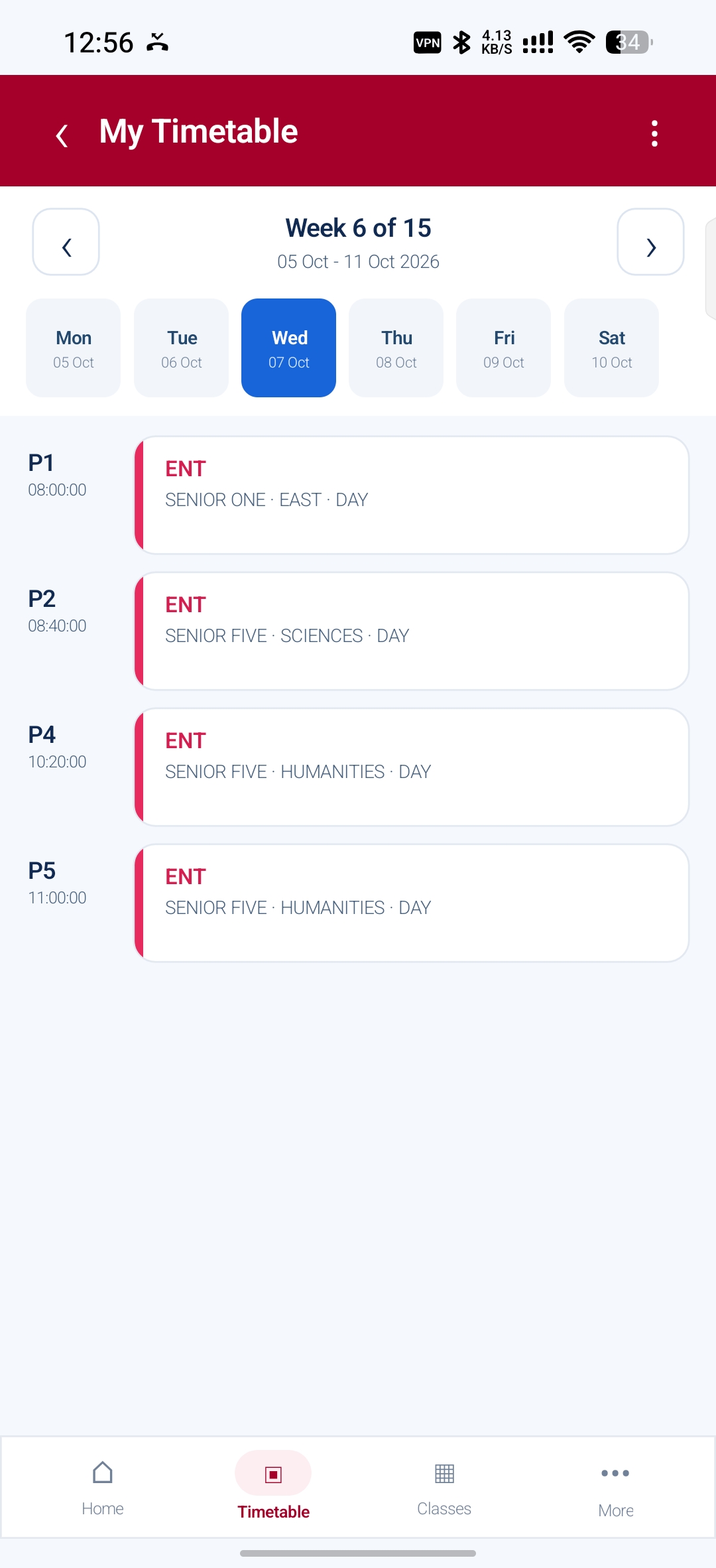
The timetable provides a day-by-day view of your scheduled periods. Use it to plan where you need to be and which class you are teaching during the selected academic week.
 Enlarge
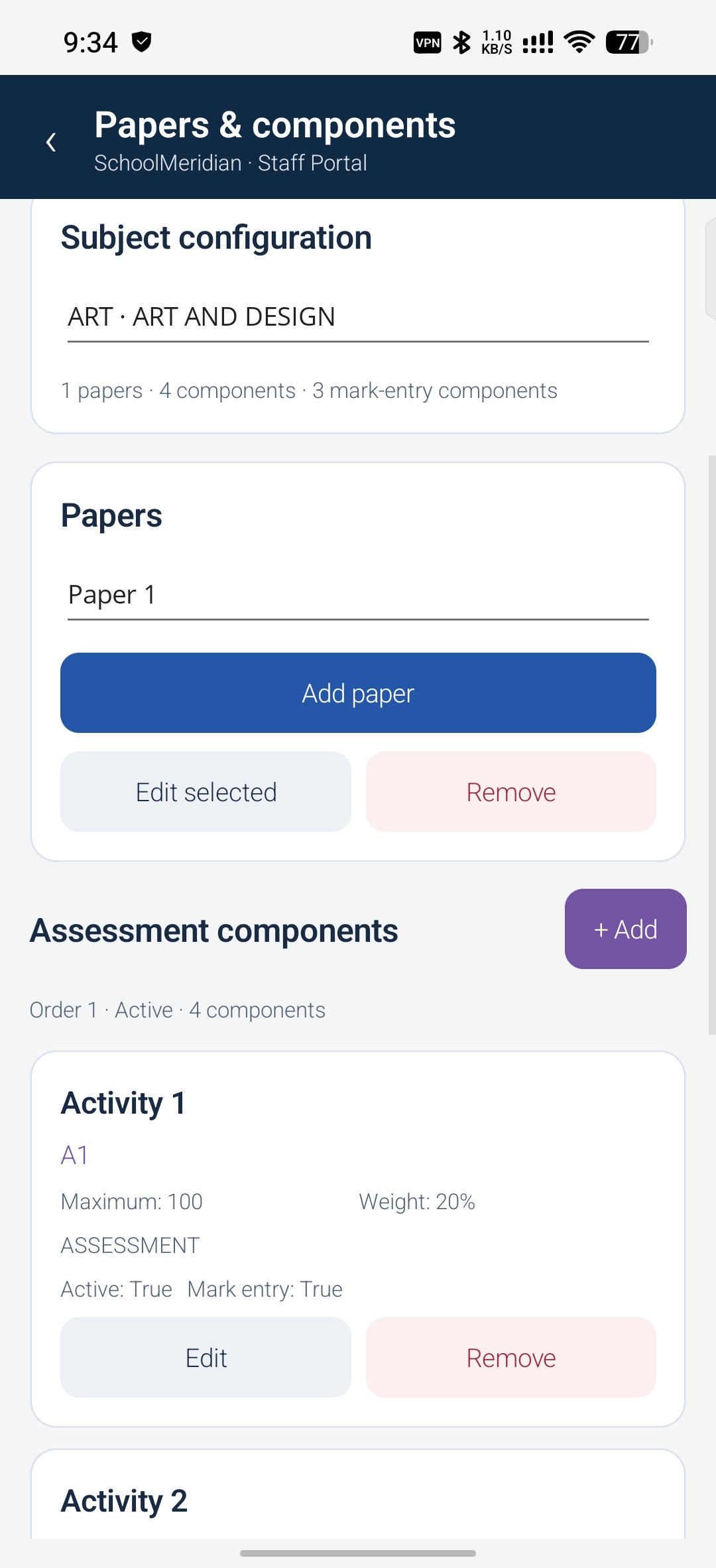
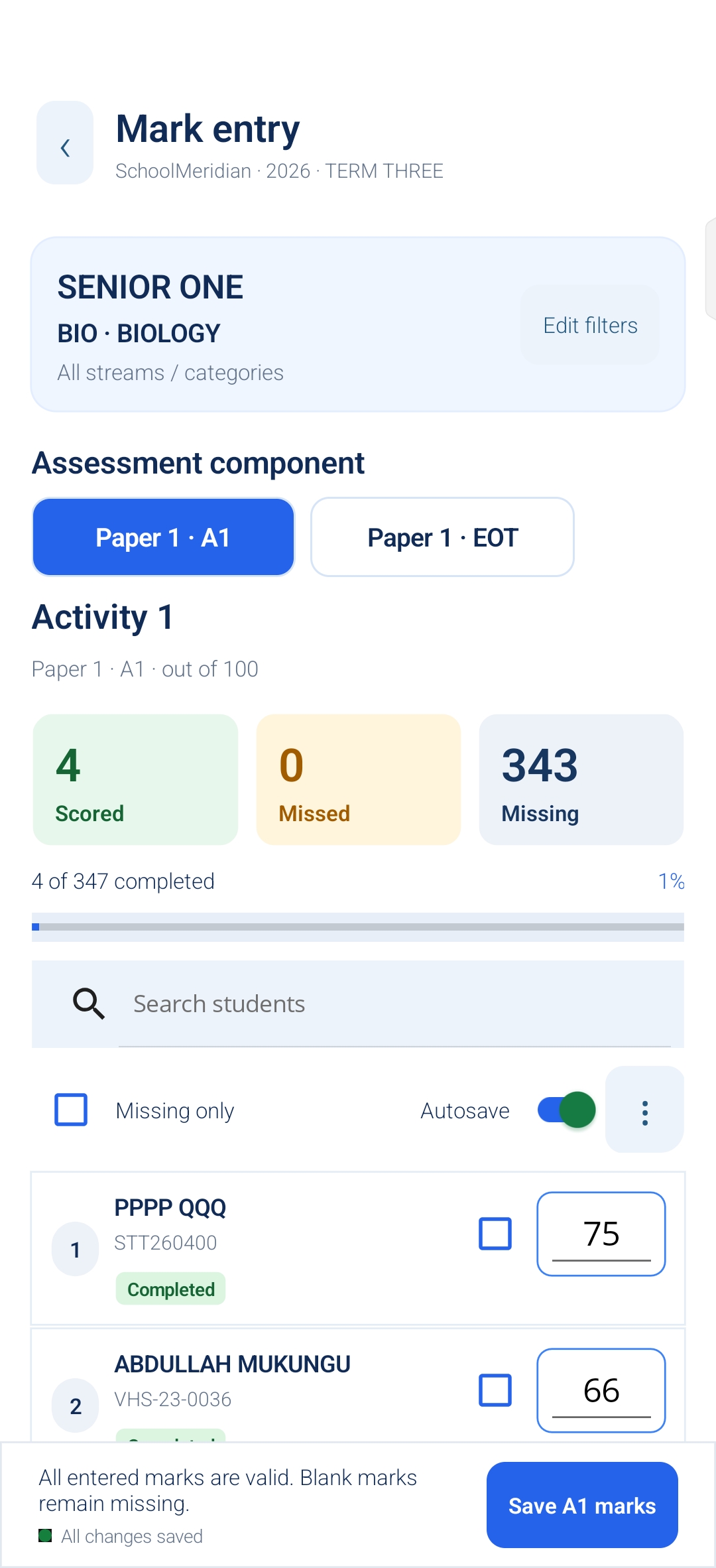
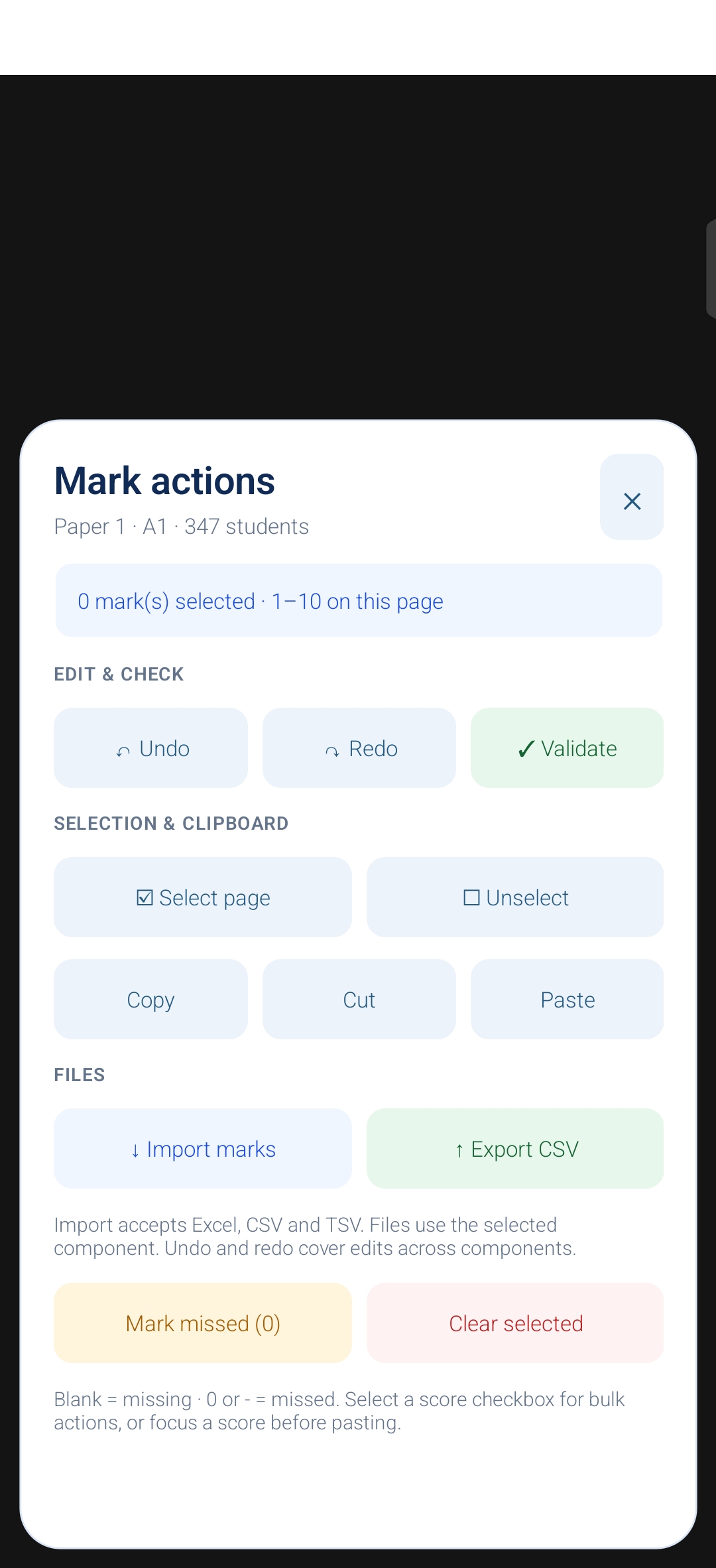
Assessment tools connect subject papers, assessment components and student mark entry. Confirm the academic period, subject and class before making changes, and use the tools available to your approved role.
Confirm that the phone is connected to the correct school network and that the school server is running. Refresh the server list. On iPhone or iPad, check that SchoolMeridian has local network permission in device settings if you are connecting on school Wi-Fi. If automatic discovery still fails, use the complete address supplied by the administrator. For off-site access, confirm the remote address and that remote access is available.
Check your staff number and telephone against the school’s staff records. Ask the administrator to correct missing or outdated information, then retry verification. Creating a username alone does not create the underlying staff record.
Your request needs administrator review. Ask the school to confirm your department, role and requested academic period. Return to sign-in once the account is approved; resubmitting the same request does not grant access.
Check the current term, class filters and assigned department or role. Staff allocations and permissions determine the workspaces you can access. Ask your administrator to review the assignment if it is incorrect.
Check the selected class, paper and component, and review the Missing count. Confirm the connection, Autosave setting and save feedback. Use the available Save action and verify the updated entries before leaving the screen.
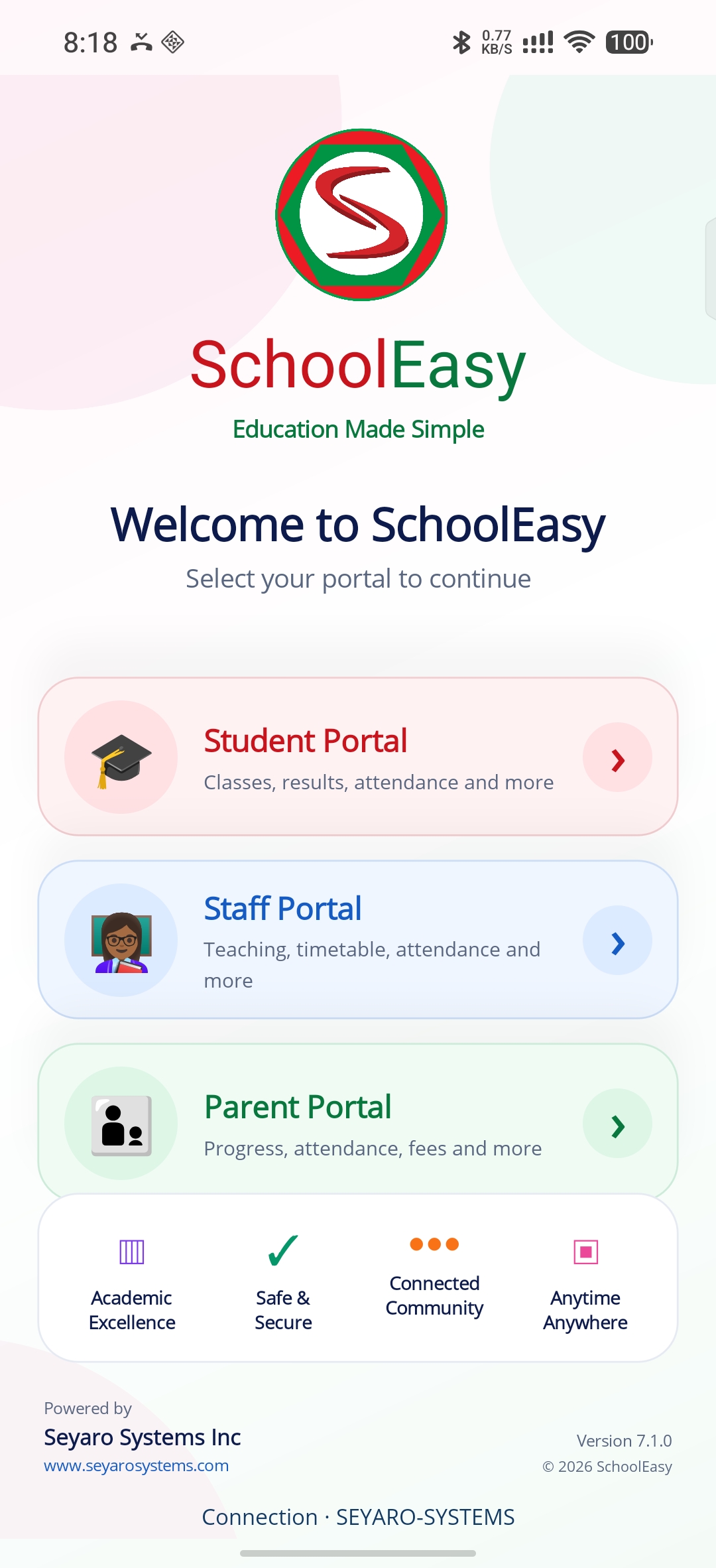
The portal selection screen shows Student, Staff and Parent options. The supplied screenshots document staff workflows in detail. Ask your school for student or parent account setup and the features enabled for those portals.
Request the approved SchoolMeridian iOS installation link from Seyaro Systems or your school administrator. Install the iOS version, then use this guide to connect to your school and access the shared mobile workflows. Android uses an APK; iOS uses its own installation package and distribution method.
Yes. The mobile versions share the app interface and core workflows described here. School connection, staff verification, account approval, dashboards, timetables and assessment tasks follow the same sequence. Installation, system permission prompts and some device styling vary by platform.
Contact your school administrator for account approvals, staff allocations and server details. For product setup or an iOS installation link, talk to Seyaro Systems. Include your app version, the workflow involved and the exact error message.